Getting Started with user menus in Frameable Spaces
How to access user menus
Clicking on a colleague's profile picture will bring up a menu list of information and your
immediate engagement options for that person. These menus can be viewed anywhere in
the app where you can click on an individual colleague’s avatar.
From anywhere within the Spaces app, click on a colleague's avatar and a small menu will pop up to display different options for interacting with that colleague. You will be able to view their Teams profile, start a direct chat message, invite them to 'meet now' through an instant Teams meeting, or 'Tap' them. Depending on their current status, you may be able to see what room they're currently working in or what meeting they're attending and have the option to join them instantly.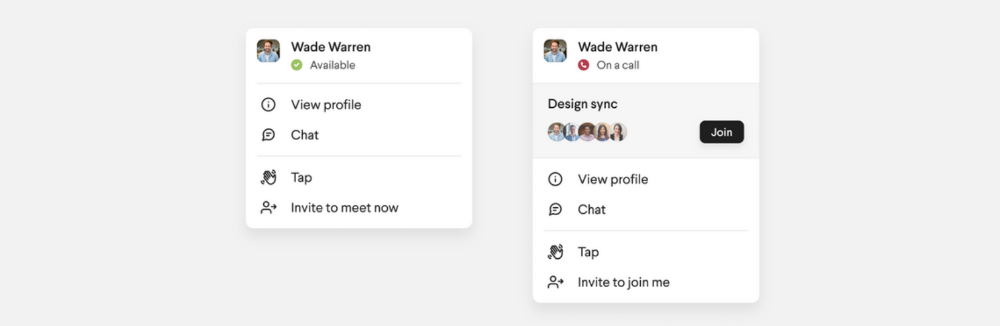
How to use the Tap feature
The Tap feature is a new way to communicate to someone that you would like to connect with them at their next availability without interrupting their current activity. A small dot will remain on both parties' avatars until the tap has been resovled as a reminder that a non-urgent connection should take place.
When you click the Tap button, a chat message will appear in a chat thread between you
and that colleague alerting them of the tap. A small pink dot will also appear on the avatar of the person you have tapped and they will see a small pink dot on your photo on their end.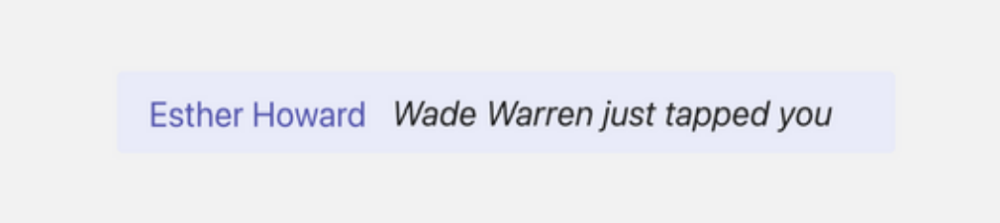
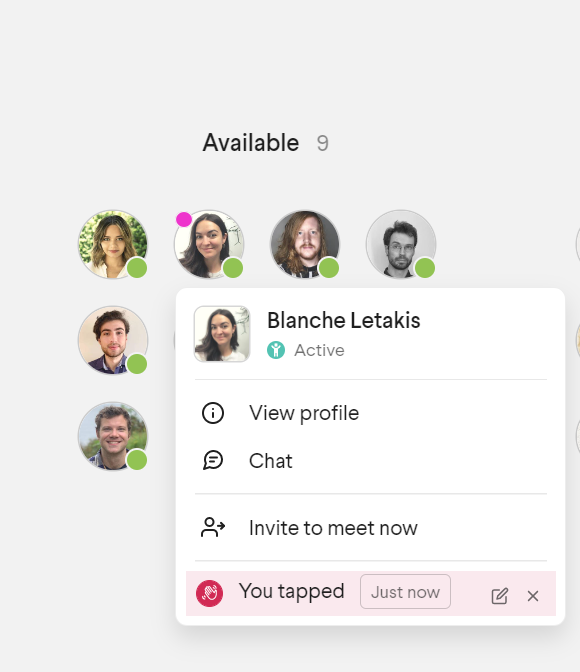
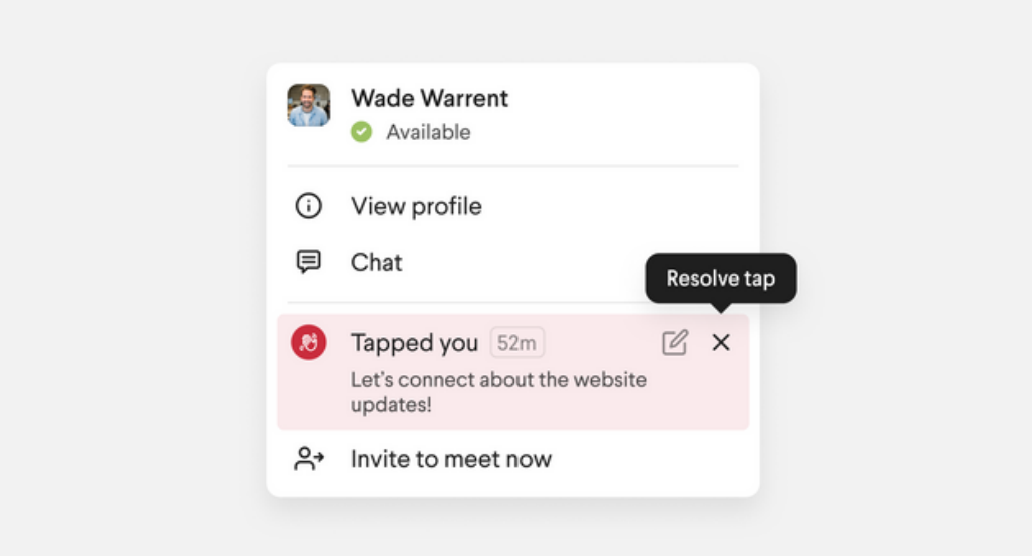
- Once the tap button has been clicked, it will be highlighted in pink and a time
clock will appear to show how long the Tap has been active/unresolved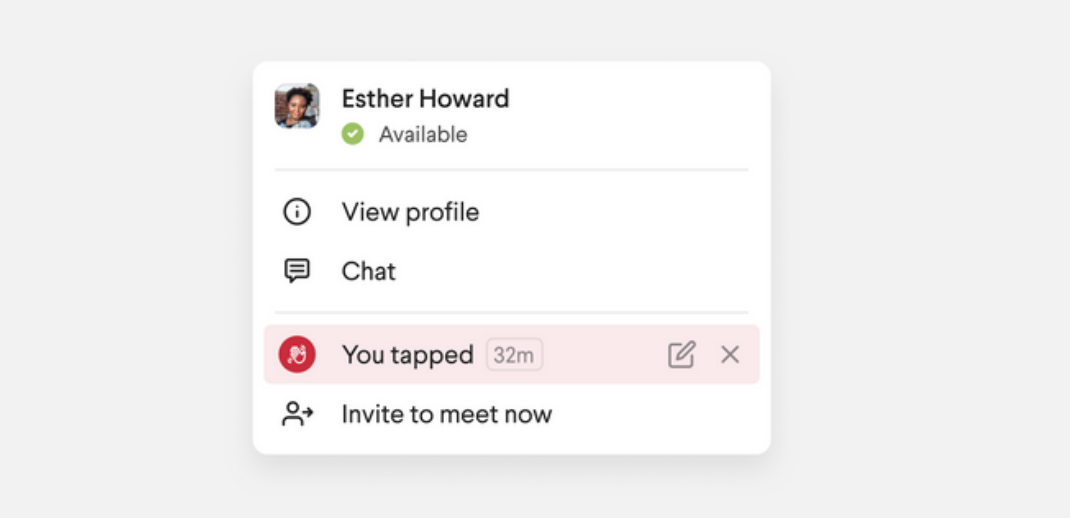
- If you’d like to attach a quick note to explain what you’d like to connect with someone
about, you can click the pen and paper edit button and a text box will appear for you to
write your message. Upon clicking ‘save,’ your note will be delivered to your chat message
with that colleague.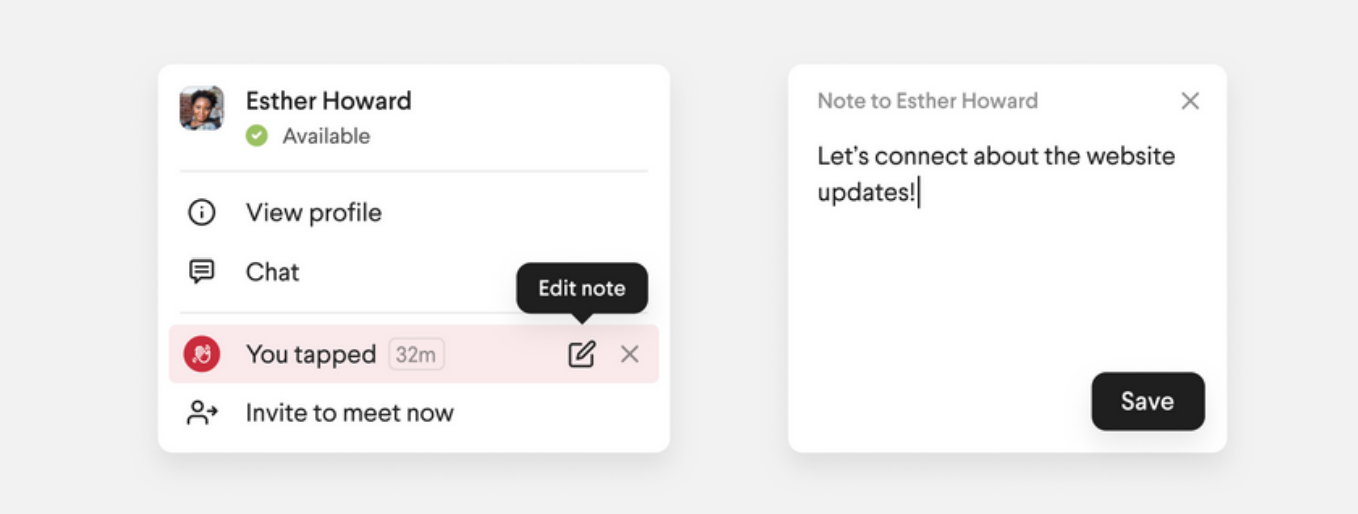
- To dismiss these notifications or ‘resolve the tap,’ simply click on the ‘x’ button displayed
within the pink-highlighted notification. We recommend keeping the notification open and
active until you have actually met or resolved the item in order to keep yourself reminded
that a colleague would like to connect with you.